

How to Prevent Microsoft Teams from showing away
Sadly, there is no way to stop Teams from changing your status to "Away" each time you lock your computer, put it to sleep, or allow it to remain idle for the time limit now established by Teams. Even when updating it manually, there is no way to make it permanent. You can Prevent Microsoft Teams from showing away by going into the settings of the meeting and tapping away. Then you can reset status as per your wish just like when someone put meeting on hold in Microsoft Teams.
Prevent Microsoft Teams from showing away in 4 easy steps:
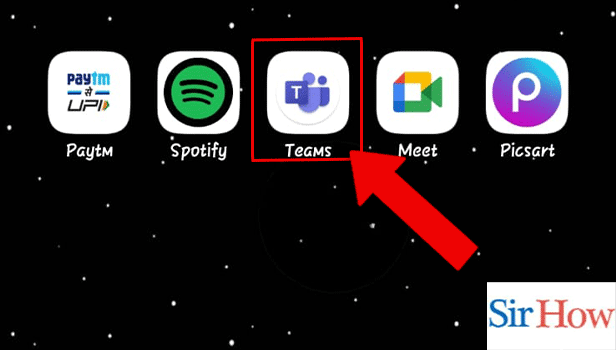
Step 1: Open the Microsoft Teams App: Firstly, you have to look for Microsoft Teams application on your mobile.
- Tap on it to open.
- You need a proper internet connection otherwise the application will not work.
- Identify the Teams icon through the image given below.
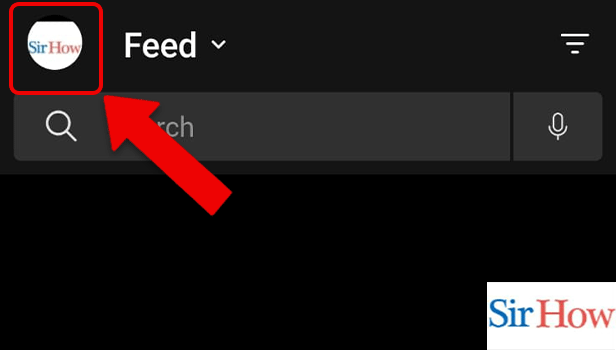
Step 2: Tap on the Profile Icon: Secondly, tap on the Profile icon. You will locate it at the top of your screen.
- After opening Teams application you have to go to profile icon.
- It is on the left.
- See the red arrow in the given image.
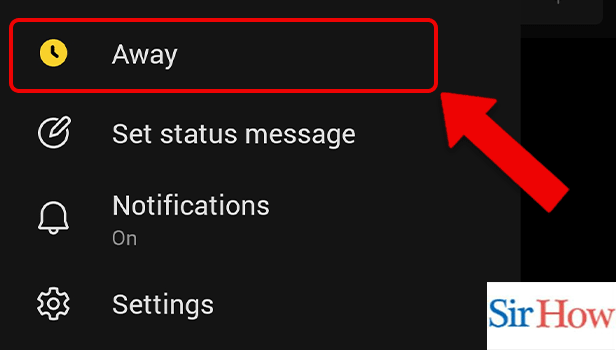
Step 3: Tap on the Away option: However, tapping on profile icon will take you to a new content where you have to click on Away.
- You will locate Away option at first.
- Make sure you tap on it.
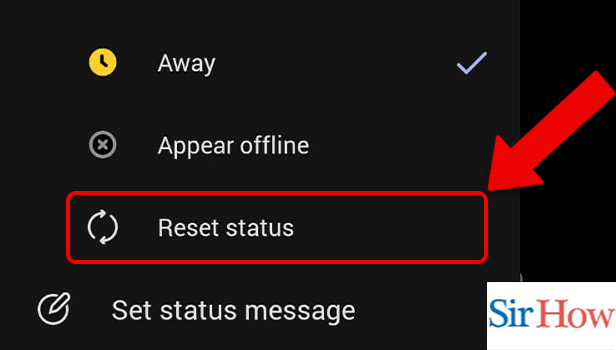
Step 4: Tap on Reset status: Lastly, click on Reset status. It will reset your present status.
- Reset status option will come after you click Away option.
- You can also reset database in Microsoft Teams.
- Make sure you follow the red arrow in the picture positioned below.
So, by following these steps you will understand the process of how to prevent Microsoft Teams from showing away. The steps are explained in a beautiful way. Make sure you follow each of them. Now, let's see how can we enable qa in Microsoft Teams.
FAQs
In Microsoft Teams, how do I modify the inactivity timeout?
Choose your profile photo, next your current status and finally Duration. Choose the future status you want to display under Status. Additionally, choose the time period you want that status to last under Reset status after.
Is it possible to keep Teams green?
You simply need to launch the Teams client and perform a right-click on the Caffeine symbol there. Next, click the preset option under "Active for" that is between 15 minutes and 24 hours. I'm done now! You could stay online for as long as you like because your computer wouldn't go to sleep. However, it is also possible to get dial pad in Microsoft Teams.
How soon will Microsoft Teams debut?
If you aren't using Microsoft Teams, its status will change to "Away" after 5 minutes. Running Teams in the background does not help because this status can make employees appear "Away" even though they are merely working in another application.
Why do my Teams constantly turn yellow?
The "yellow" status icon appears automatically whenever the machine has been "idle" or goes into sleep mode, according to Microsoft Teams.
My face is orange on Teams, why?
The footage is underexposed, and the white balance is off, which are the main 2 causes. If you don't understand what I'm saying now, don't worry; you will in a moment.
These are the five most important FAQs you need to know to prevent Microsoft Teams from showing away. However, you can write a comment below in the comment box and tell us about your experience while reading this article.