

How to Create a Group in Microsoft Teams
You must first create the team, add members, and add channels in order to get your team up and running in Microsoft Teams. How? Read on. Click to Create a Group in Microsoft Teams. Here, you can either find an existing team or start your own. Moreover, we'll start a new one. Give the squad a name, and if you like, include a brief description. If you want everyone in the organisation to be able to find and join the team, make it public.
Create a Group in Microsoft Teams in 7 steps:
Step 1: Open the Microsoft Teams app: Firstly, you have to open Microsoft Teams application.
- You should download the application if not present on your mobile.
- You should have a internet connection.
- Download the application from Play Store.
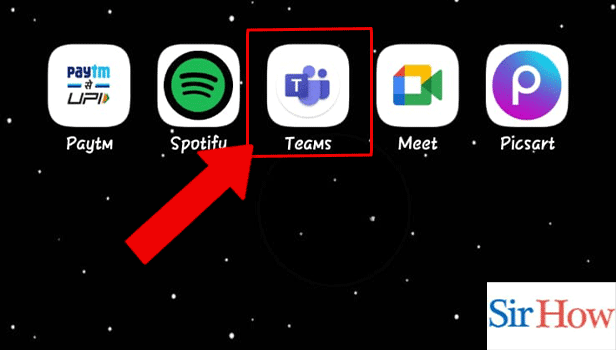
Step 2: Tap on the Chat icon: Secondly, tap on the Chat icon. You have to locate it from the bottom of your screen.
- See the image below indicating the Chat icon.
- Chat icon is on the second position.
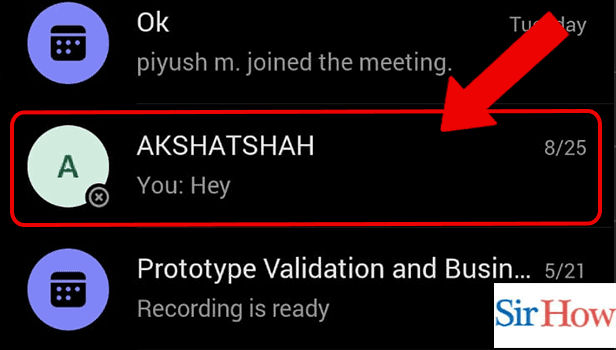
Step 3: Tap on the Chat: Moreover, tap on the Chat of the member you want to talk.
- Search them by their names.
- The search bar is at the top of your screen.
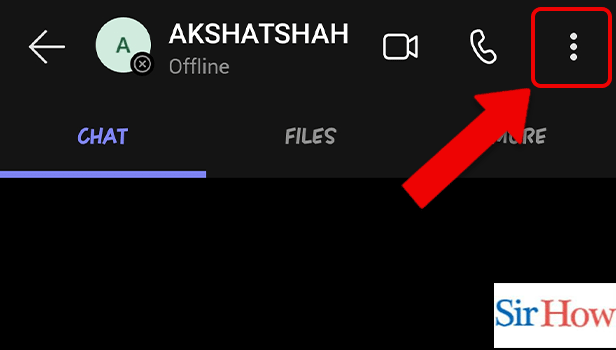
Step 4: Tap on the 3 dots: The next step comes after you tap on the three dots. However, the dots icon is present at the right.
- Follow the red arrow in the below image.
- The three dots option is present beside the Calls option.
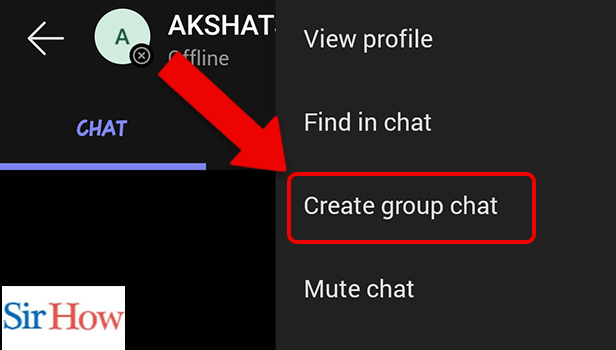
Step 5: Tap on Create a group chat: Thereafter, click on create a group chat to create a group.
- The option is present at the third position.
- Choose the option from the four options present there.
Step 6: Select the Person's: Additionally, select the person's you want to add in the group. You can search their names and add them into your group.
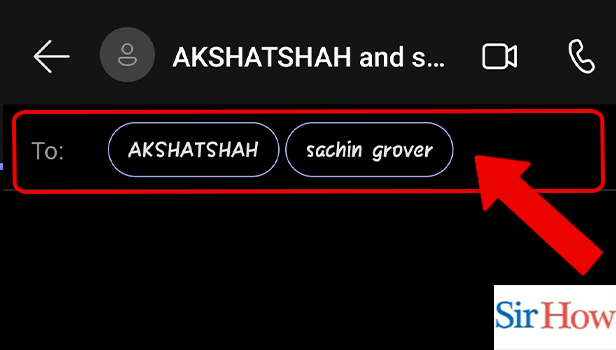
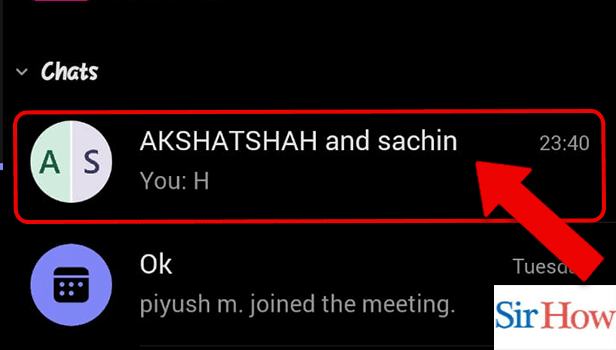
Step 7: Tap on the Group chat: Finally, after creating the group, tap on the group icon to see it.
You have to consider these seven steps to know how to create a group in Microsoft Teams. Moreover, you will get an idea of how to do the process in a better way.
FAQs
Why am I unable to make a Microsoft Teams group?
You might not have the appropriate permissions to create your own teams if you can't see the option to "Create a new team." Additionally, save Microsoft Teams chats for groups if they are important.
In Microsoft Teams, how do a team and a group vary from one another?
Teams is designed for internal cooperation and at this time does not support external sharing, whereas Groups supports the insertion of external participants.
Which is preferable, a team or a group?
Teams have been shown to be more successful in achieving goals since everyone collaborates with one another. See multiple participants on Microsoft Teams through groups who want to join the meeting.
Does assembling a group form a group?
A group is also created each time you form a team using Microsoft Teams.
How do you make a list of team members?
Lists should then be selected after clicking the Add a tab icon. Get the chat box on Microsoft Teams to see the messages of multiple participants who have joined the meeting.
Thus, consider these five FAQs to know the process of "How to Create a Group in Microsoft Teams." Moreover, you can ask questions in the comment section.