
- Microsoft Teams
- make video call
- send attachment microsoft
- use microsoft teams video
- add multiple users
- see everyone microsoft
- add apps microsoft
- activate cortana microsoft
- disable gifs microsoft teams
- pin chat microsoft teams
- change cortana’s voice
- add room microsoft
- remove someone microsoft
- ping someone microsoft
- download file microsoft
- find microsoft teams
- get microsoft teams
- schedule recurring meeting
- send pictures microsoft teams
- schedule microsoft teams meeting
- enable chat microsoft teams
- share video audio
- delete conversations microsoft
- create new team
- leave team microsoft teams
- sign out microsoft teams
- mute yourself microsoft teams
- add members team
- edit team description
- turn off microsoft teams
- transfer files from
- share documents microsoft teams
- get microsoft teams code
- download recording microsoft teams
- present ppt microsoft teams
- keep microsoft teams active
- change microsoft teams personal
- find team microsoft teams
- chat privately microsoft teams
- make microsoft teams
- receipts microsoft teams
- control microsoft teams
- sync on microsoft teams
- contacts google microsoft teams
- files microsoft teams
- location microsoft teams
- history microsoft teams
- unblock microsoft teams
- conference microsoft teams
- microsoft teams management
- background in microsoft teams
- create group microsoft teams
- form microsoft teams
- leave microsoft teams
- audio microsoft teams
- photo microsoft teams
- unhide chat microsoft teams
- external microsoft teams
- rename microsoft teams
- chat on microsoft teams
- gifs microsoft teams
- remove microsoft teams
- calendar microsoft teams
- number microsoft teams
- chat microsoft teams
- conference call microsoft teams
- use whiteboard microsoft teams
- reply message microsoft teams
- use microsoft teams meetings
- make presenter microsoft teams
- off microsoft teams notifications
- microsoft teams invite link
- leave class microsoft teams
- login microsoft teams
- clear microsoft teams cache
- microsoft teams meeting link guest
- phone audio microsoft teams
- share screen microsoft teams
- microsoft teams meeting gmail
- make folder microsoft teams
- recorded video microsoft teams
- record microsoft teams meeting
- quote message microsoft teams
- see people's faces microsoft teams
- mute others microsoft teams
- save microsoft teams chat
- control microsoft teams meeting
- delete microsoft teams messages
- blur microsoft teams
- chat box microsoft teams
- multiple participants microsoft teams
- uninstall microsoft teams
- open camera microsoft teams
- prevent microsoft teams away
- block someone microsoft teams
- add calendar microsoft teams
- change name microsoft teams
- organization microsoft teams
- full screen microsoft teams
- microsoft teams recording
- powerpoint microsoft teams
- background microsoft teams
- assign tasks microsoft teams
- remove someone microsoft teams
- delete microsoft meeting
- find microsoft number
- open link microsoft teams
- track tasks microsoft teams
- use microsoft lists teams
- send microsoft recording
- send invitation microsoft teams
- carriage microsoft teams chat
- join microsoft teams
- rotate video microsoft teams
- move files microsoft teams
- trick microsoft teams status
- remove pinned chats
- download search history
- change theme microsoft teams
- clear app data
- sync contacts microsoft teams
- mute notifications attending meeting
- reduce data usage
- send important messages
- add new language
- edit messages in microsoft
- react on messages
- get notified when joins
- enable translation in microsoft
- enable cortana in microsoft
- lock meeting microsoft teams
- spotlight a participant
- check attendance in microsoft
- write on white board
- enable auto translation
- join meeting with id
- add tags in microsoft
- change screen sharing settings
- pin someone in microsoft
- add a new channel
- disable google calendar
- forward a meeting
- remove someone from teams
- praise someone on microsoft
- send a voice note
- send paragraph in microsoft
- send approvals microsoft teams
- send task list
- check voicemails microsoft teams
- get reminders from meetings
- unpin channels on microsoft
- access microsoft teams chat
- access microsoft teams
- view offline files
- add description microsoft teams
- use cellular data
- enable immersive reader
- send urgent messages
- add location microsoft teams
- put microsoft teams
- enable shift reminders
- disable youtube videos
- turn on cart captions
- make anybody owner
- add apps microsoft teams
- join team with code
- set event reminders
- mute meeting notifications
- change team picture
- get dial pad
- put meetings on hold
- turn on captions
- forward messages in microsoft
- mark messages unread
- do text formatting
- disable contacts from sync
- set status message
- reset database microsoft teams
- send emojis microsoft teams
- disable reactions microsoft teams
- enable q&a microsoft teams
- react in microsoft teams
- change image upload
How to Change Microsoft Teams from personal to work
Are you using Microsoft Teams for personal communication and want to switch to its work version? Look no further! Changing your Teams account from personal to work is a quick and easy process that can be done in just a few steps. In this blog post, we will guide you through the steps involved in transitioning from your personal Teams environment to the work version, and provide you with tips to make the process seamless. With our help, you'll be able to collaborate with your colleagues on Teams without any hassle. So let's get started and make the transition from personal to work Teams today!
Change Microsoft Teams from Personal to Work in 5 Steps
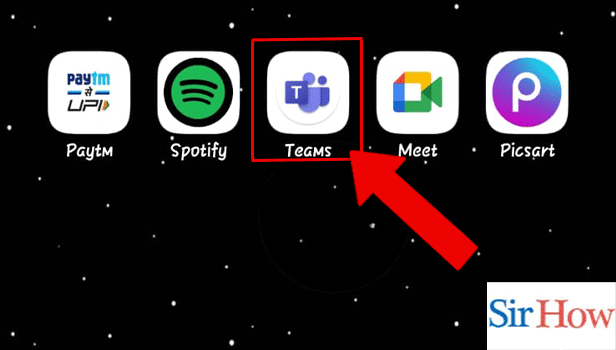
Step 1: Open Microsoft Teams App - To start, launch the Microsoft Teams app on your desktop or mobile device. If you haven't downloaded it yet, you can visit the Microsoft website to download and install the app.
- Make sure you have a stable internet connection before launching the app, to avoid any connectivity issues.
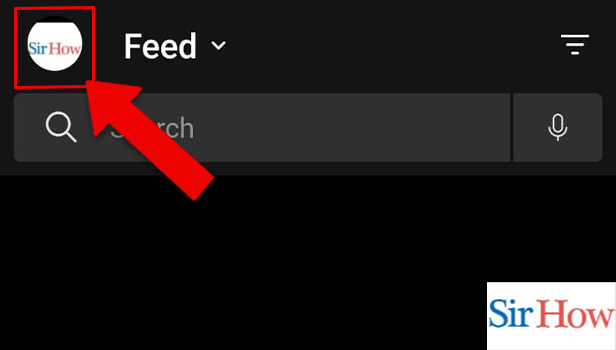
Step 2: Tap on profile icon - Once you have launched the app, you will see your profile icon in the top-right corner of the screen. Click on the icon to open your profile settings.
- If you are using the mobile app, you can find the profile icon in the bottom right corner of the screen.
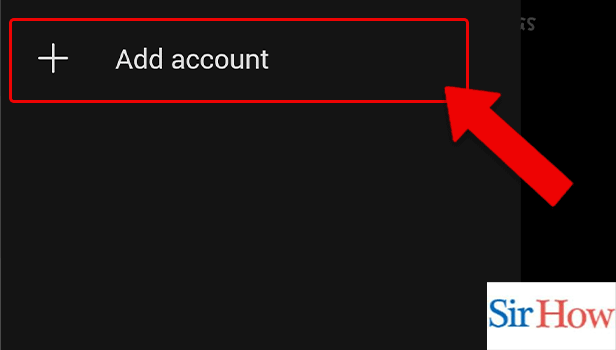
Step 3: Tap on add account - In the profile settings, you will see an option to "Add account". Click on this option to add a new account to Microsoft Teams.
- If you have multiple accounts already added, you can switch between them by clicking on your profile icon and selecting the account you want to use.
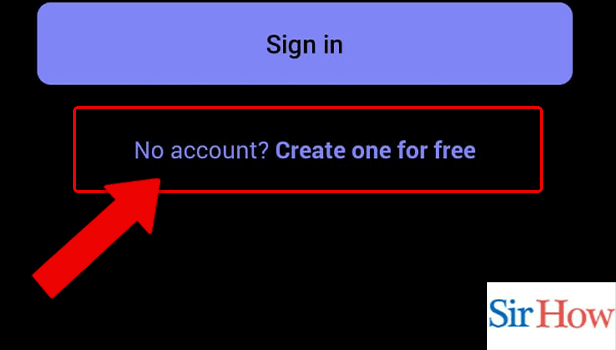
Step 4: Tap on no account - After clicking on "Add account", you will be asked if you already have an account. Click on "No account" to create a new account.
- Make sure you have your work email address and password ready, as you will need to enter this information to create your work account.
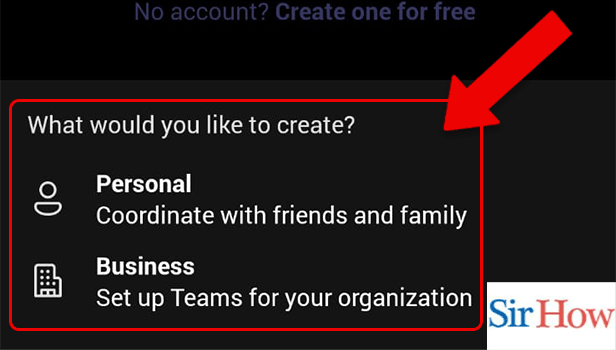
Step 5: Tap on personal or business - Finally, you will be prompted to select the type of account you want to create. Select "Business" to create a work account, or "Personal" to create a personal account.
- If you want to use Microsoft Teams for both personal and work purposes, you can add both types of accounts to the app and switch between them as needed.
Switching from personal to work version of Microsoft Teams is a straightforward process that requires signing out of your personal account, signing in with your work account, and setting up your work Teams environment. By following these steps, you can seamlessly transition from personal to work Teams and collaborate with your colleagues effectively.
Tips
- Make sure to save any important conversations or files before signing out of your personal account.
- Use your work email address to access the work version of Teams.
- Customize your profile and notifications to suit your work preferences.
- Familiarize yourself with the different channels and features available in the work version of Teams.
- Check with your employer or IT department to get a work account if you don't have one.
FAQ
- Can I have both personal and work accounts on Teams at the same time?
- Yes, you can have both personal and work accounts on Teams, but you need to sign in separately to access them.
- Will switching to work Teams affect my personal conversations and files?
- No, switching to work Teams will not affect your personal conversations and files. They will still be accessible when you sign back in to your personal account.
- Can I use the same email address for personal and work Teams accounts?
- No, you need to use a separate email address for your work Teams account.
- Can I switch back to my personal Teams account from work account?
- Yes, you can switch back to your personal Teams account by signing out of your work account and signing in with your personal account.
- Do I need to download a separate app for work Teams?
- No, you can use the same Teams app for both personal and work accounts. Just sign in with the appropriate account.
Related Article
- How to Dial a Number in Microsoft Teams
- How to Delete a Chat in Microsoft Teams
- How to view Location of Viewers on Youtube
- How to set up a Conference call on Microsoft Teams
- How to Use Whiteboard on Microsoft Teams
- How to Reply to a Specific Message on Microsoft Teams
- How to Use Microsoft Teams for Meetings
- How to Make Someone a Presenter in Microsoft Teams
- How to Turn off Microsoft Teams Notifications
- How to Send Microsoft Teams Meeting Invite Link
- More Articles...
