

How to Add Custom Background to Microsoft Teams
When you are in a meeting and you want the focus to be on you, you may blur or alter your background effects in Teams for personal and small business use. iOS, Mac, and Windows are the only platforms that support background effects. Additionally, you can also change theme in Microsoft Teams. So, basically you can Add Custom Background to Microsoft Teams.
Add Custom Background to Microsoft Teams in 6 steps:
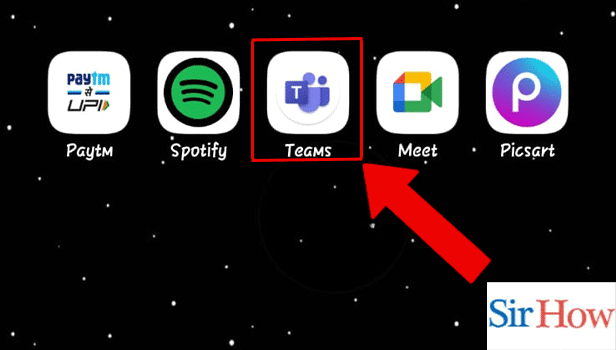
Step 1: Open the Microsoft Teams App: Firstly, begin with opening the Microsoft Teams application.
- It may happen that the application is not present on your device, then download the application from the Playstore without any cost.
- To run Microsoft Teams application, you should have a secure internet connection.
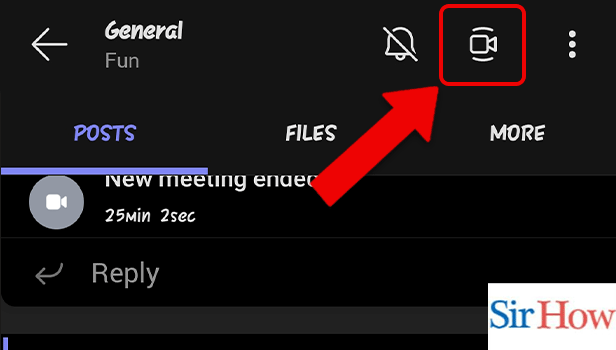
Step 2: Start the Meeting: Secondly, you have to locate the Video icon. Then you can start the meeting by tapping onto it.
- You will locate the icon at the top of your screen.
- Make sure you follow the below image which will help you in the identification.
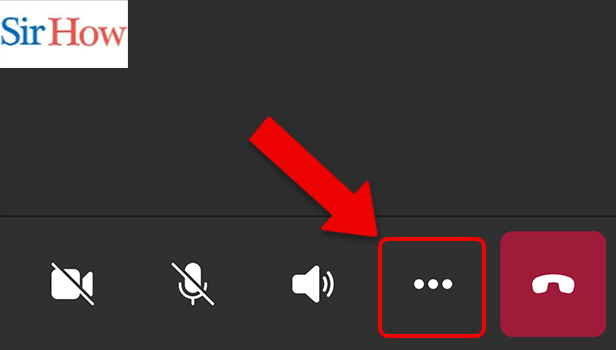
Step 3: Tap on the 3 dots: Moreover, you have to tap on three dots when meeting is started.
- The dot icon is at the bottom of your screen.
- Locate it beside the sound icon.
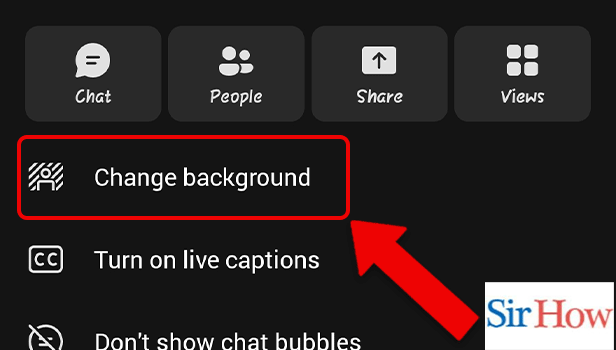
Step 4: Tap on Change Background: In the next step you have to tap on Change Background. However, you can see it popping on your screen.
- Prefer the image below as a reference.
- Follow the red arrow in the given image below.
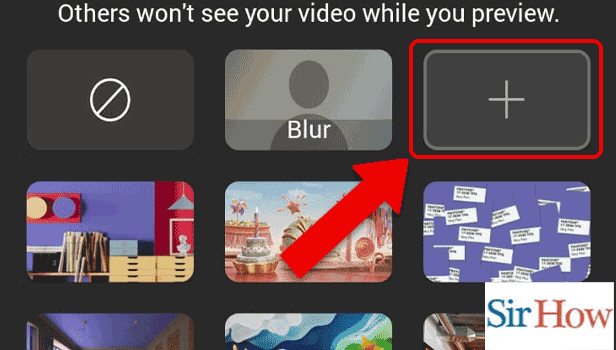
Step 5: Tap on Add Background: Tapping on change background will take you to a new place where you have to add background of your own personal choice.
- Tap on plus sign to give a new background.
- Others won't see your video while you preview.
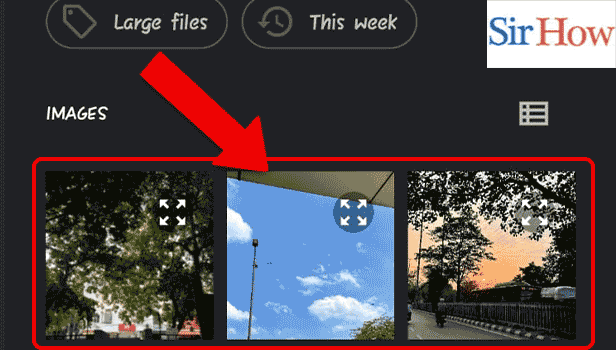
Step 6: Choose the Background: Lastly, choose the background image on your own from your Gallery.
- You can select any one image.
Thus, by following these steps you can easily add custom background to Microsoft Teams. These are the steps which a beginner can easily follow.
FAQs
Why can't Microsoft Teams use a custom background?
Check with your company's IT department to discover if the custom backdrops feature is available or when it will be accessible if you are using Microsoft Teams and cannot see it during video conversations.
How can I set a picture as the background of my computer?
Go to the location on your screen where you want the image, then save a shot you like. Choose "Customize" from the menu when you right-click the screen, then "Background Picture." You can enable cortana in Microsoft Teams.
Can the interviewer see my screen?
Because not everything on your desk will be visible to your interviewer (or on your computer screen). Moreover, you can enable auto translation in Microsoft Teams.
How can I create a background using an app?
The greatest wallpaper software for creating wallpaper on your phone is You Cam Perfect.
Is it acceptable to glance through your interview notes?
You certainly can, as long as you're acting morally.
Now, you can see the FAQs which are related to these topic and gather some knowledge. If any questions arise on your mind, you can leave a comment here.